







2024.04.09
How to conduct online training by integrating Moodle and Zoom?

-
Category
Recommended Articles
-
[Moodle Manual ③] 2025 Edition | Support Staff Explain How to Set Up and Utilize Forums!
-
[Moodle Manual ②] 2025 Edition|How to Create Quizzes, Setup Procedures, and FAQ Explained by Support Staff!
-
[Moodle Manual ①] 2025 Edition|How to Set Assignments & Tips for Use Explained by Support Staff!
-
What is Vyond? Introducing the benefits of an animation video production tool that can be used for business.
-
[Animation Teaching Material Production] How to Create e-Learning Materials ②
-
How does Vyond differ from other animation production software? Comparison and recommendations
-
Can Vyond animations be used as teaching materials? Here are the benefits of using them in e-learning and training.
-
Let's create business animations with Vyond! An explanation of the reasons and benefits recommended for business, as well as challenges.
-
Vyond Go (AI Video Generation) Tips and Best Practices ① Vyond Go Setup Guidelines
-
Moodle Basic Course: What is Moodle?
-
[Moodle Basic Course] What can the e-learning management system Moodle do?
-
[Moodle Basic Course] What can be done with Moodle's default features
-
Benefits and Considerations of Moodle Cloud Services
-
Moodle is not only used by universities (widespread use)



When the COVID-19 pandemic began, universities were unable to hold on-campus classes, and remote work became the norm in companies. In this context, web conferencing systems quickly became widespread. Zoom boasts the top market share domestically, both in companies and universities.
Zoom is a cloud service that enables web conferencing anytime, anywhere, and from any device. In addition to its use for "meetings," Zoom is also widely used in "learning" scenarios. Online learning using Zoom has been adopted in both corporate training and school classes. If you are using Moodle, an online learning management system, you might wonder if it is possible to conduct online training by integrating it with Zoom.
Therefore, this time we will introduce how to use Moodle and Zoom together and the benefits of doing so.
1. Features and Useful Functions of Zoom

First, let's review the general features and functions of Zoom. Zoom has the following features.
No account registration is required
With typical web conferencing tools, both the host and participants need to register accounts. However, with Zoom, only the host needs to register an account. Participants can easily join the meeting simply by accessing the URL sent to them, which is very convenient.
Available for free
Zoom offers a free version in addition to the paid version. You can easily invite members to a meeting just by sending an invitation link. However, please note that the free version has a time limit on meetings.
Large-scale meetings are possible
With Zoom's paid plans, you can hold large-scale meetings with up to 1,000 participants. It can also be used for webinars and company-wide meetings. Even the free plan allows meetings with up to 100 participants.
A stable connection environment
A stable connection is very important for web conferences. Zoom excels in line optimization technology, allowing it to be used reliably even on slow connections. It can be used not only with Wi-Fi but also with 4G and 5G connections, so you can confidently participate in meetings even when you are out and about.
Many useful features are available
Zoom offers a rich set of features such as virtual background settings, screen sharing, whiteboards, and tools for group discussions.
Next are the main useful features of Zoom.
Screen Sharing
With screen sharing, you can show your computer screen to meeting participants. By displaying materials on the screen while explaining, it is expected that everyone will understand the content more easily. In Zoom’s settings, you can change it so that not only the meeting host but also participants can share their screens.
Breakout Rooms
Breakout rooms are a feature that allows you to divide meeting participants into up to 50 rooms. They are useful for group discussions and consolidating opinions.
Recording
In the recording, you can capture both the screen and audio of the meeting. You can show the meeting to those who could not attend on the day. Similar to screen sharing, by default, only the meeting administrator can record, but the settings can be changed to allow participants to do so as well.
Chat
In chat, you can send short messages and share files or URLs. You can send messages not only to everyone but also individually.
Whiteboard
The whiteboard can be shared online with meeting participants. You can draw illustrations or handwritten text and share them with participants, making it easier to convey things that are difficult to express with text alone.
2. Advantages and Disadvantages of Real-Time Online Training

After reviewing Zoom's features, we will discuss the types of online training. There are two main types: on-demand and real-time.
On-demand online training involves watching pre-recorded videos. While you cannot have interactive communication with the instructor, it offers the advantage of allowing you to take the training whenever it suits you. The training content is saved and published, enabling participants to play it back as many times as they want at their preferred timing. Recording classes or training sessions conducted on Zoom is very convenient for those who could not attend to watch later.
When using Zoom, a web conferencing system, for online training, it is classified as "real-time type." The advantages and disadvantages of real-time online training are as follows.
Advantages of Real-Time Online Training
・Communication becomes more active
Participants are in the same place (space) in real-time, making it easier to ask questions and engage in discussions. This facilitates new insights and new interactions.
・Maintains appropriate tension
If you turn on the screen display and show your face, you become aware that others are watching you, creating a suitable level of tension for a learning environment.
・Participants' Understanding Deepens More Easily
Because they can ask questions freely, participants tend to deepen their understanding, resulting in better learning efficiency.
In this way, real-time online training helps facilitate interaction with participants and improve learning effectiveness.
Disadvantages of Real-Time Online Training
・Difficulty in grasping understanding
It can be difficult to determine each participant's level of understanding. In an online environment, it is challenging to accurately gauge participants' reactions and expressions through the screen, so it is necessary to conduct quizzes or other assessments to check understanding.
・Risks of Equipment and Communication Troubles
There is a possibility of issues with internet connectivity or the devices being used. Participants may join from home, the office, or sometimes outdoors, and may be affected by network instability or device malfunctions.
It is necessary to consider these advantages and disadvantages while progressing with the examination and preparation of online training.
3. What are the benefits of using Zoom on Moodle?

Why is it beneficial to use Zoom on Moodle? This is because real-time training via Zoom can be integrated as an activity within a Moodle course. The following becomes possible as activities within the course.
Participation history is recorded
In the case of Zoom only, it is necessary to grant entry permission and confirm attendance when participants enter the room. Additionally, if there are many participants, you may not notice if someone leaves during the session. However, within Moodle, detailed participation information is retained, not only whether participants attended, but also when they joined, when they left, and whether they stayed until the end.
Scheduling becomes easier
Normally, to set up Zoom, you need to log in to Zoom, schedule the meeting, and distribute the meeting information (URL and passcode) to the participants. If distributed by email, there may be issues such as participants not receiving the email or failing to check it, resulting in them being unable to attend the training. However, if you integrate Moodle with Zoom, you can schedule it directly within Moodle. Since it is set up inside the course, there is no need to send meeting room information to participants. Participants simply log in to Moodle, open the course, and click on Zoom, which is one of the activities, to immediately join the meeting.
Easily Conduct Comprehension Tests
After conducting online training with Zoom, you may want to administer a test to measure understanding. But how should this be done? Should you write the questions in a Word document and have participants fill in their answers? If so, you would need to distribute that Word file to everyone and then collect all the responses afterward. This process is very time-consuming and labor-intensive.
In the case of Moodle, you set up the test as the activity following the online training session. Once the Zoom online training ends, participants simply click on the test as the next activity and answer the questions set there. When the test is completed, correctness is immediately determined, and the instructor can review the results. For participants whose test scores fall below a certain threshold, it is also easy to have them watch the recorded online training video made using Zoom’s recording feature and retake the test at a later date.
4. How to integrate Moodle and Zoom?
We have introduced how convenient it becomes to use Zoom on Moodle, so next we will explain how to integrate Moodle and Zoom.
To integrate, you use a plugin called "Zoom meeting." It can be downloaded from this site. This is the official Moodle plugin site.
> Zoom meeting
Download this plugin and configure it in Moodle. The plugin installation method is explained in detail here, so please refer to it.
> Plugin Installation
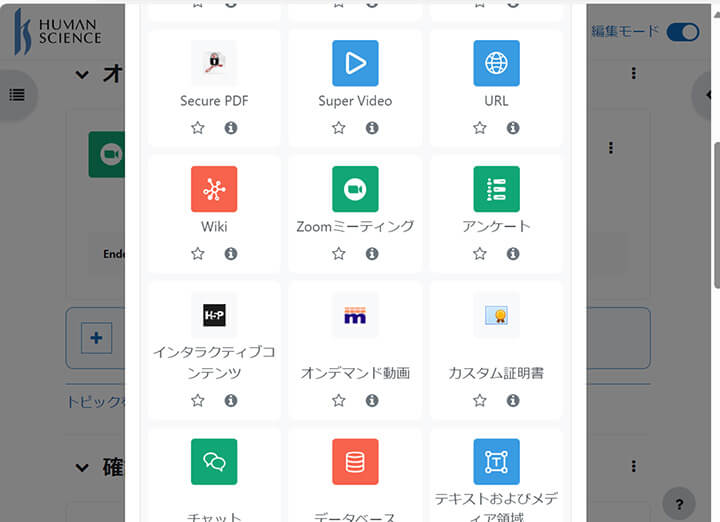
Next, log in to Moodle as a user with course creator permissions, switch to editing mode, and click "Add an activity or resource."

Select "Zoom Meeting."
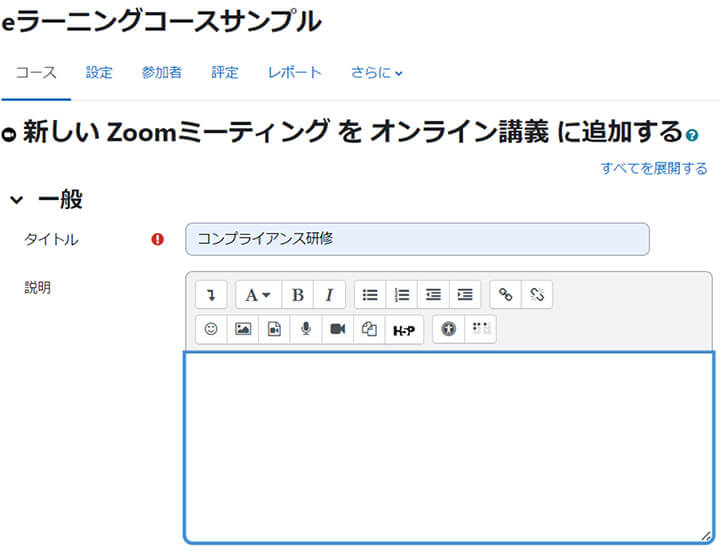
Enter the Zoom meeting name in the "Title" field. (e.g., Compliance Training)
Enter a description of the activity in the "Description" field.
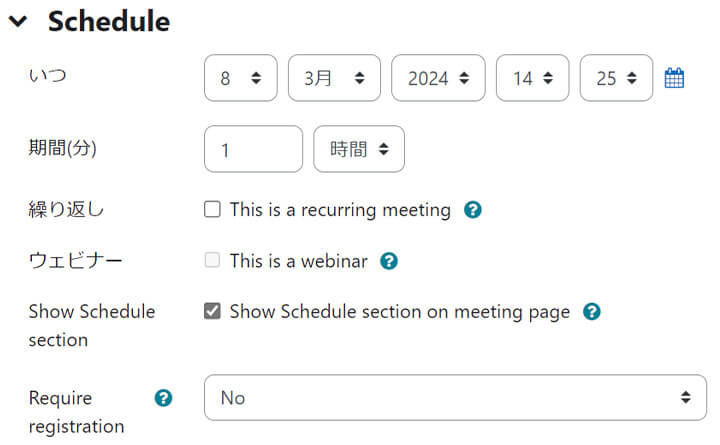
Then, perform the following settings.
"When": Set the month, day, year, hour, and minute to start the Zoom meeting.
"Duration (minutes)": Set the length of the meeting.
"Repeat": Check this if the meeting is held regularly.
"Webinar": Check this if it is a webinar.
"Show Schedule section": Check this to display the schedule information on the Zoom meeting page.
"Require registration": Enabling this option requires participants to register for the Zoom meeting before joining.
After finishing the settings, click "Save and display."
The following is the screen after the settings have been completed.
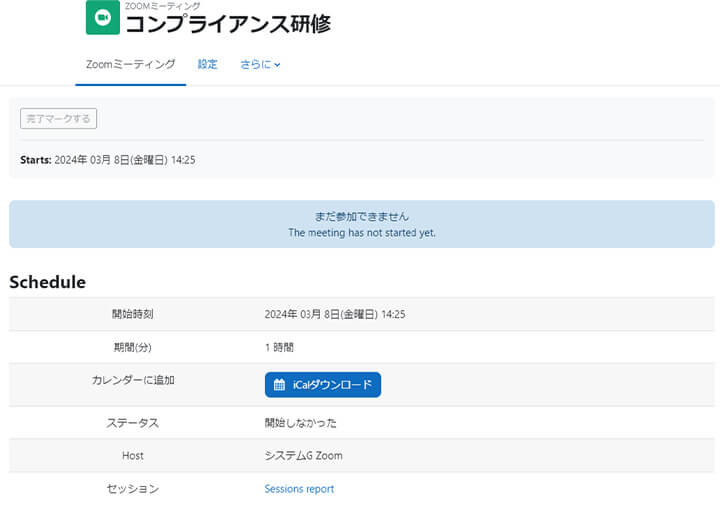
Next, I will log in as a participant user. The course will be displayed like this, and you will be able to take it. Click on "Compliance Training".

You can join the meeting simply by clicking "Join Meeting."
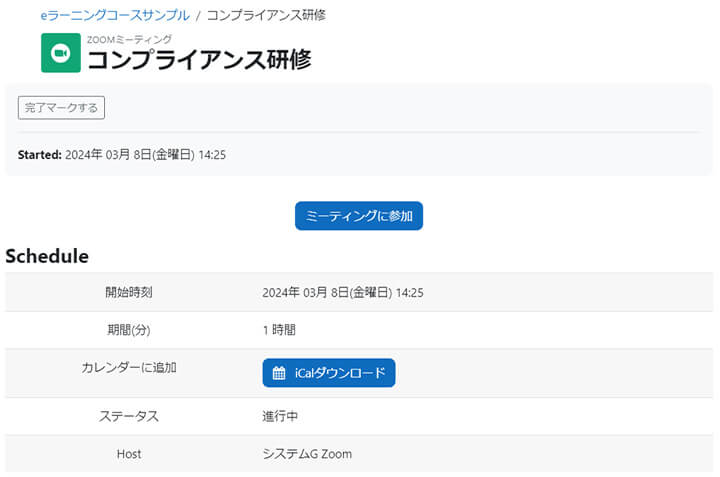
Zoom will start. Depending on the settings, it can be displayed within Moodle or shown in a separate browser window.
In this way, participants can easily join Zoom without distributing the necessary URL or meeting room information. Being able to join easily means there are no troubles, which reduces the instructor's workload. Additionally, it is very convenient because participation information can also be collected within Moodle.
5. Summary
Moodle and Zoom are tools widely used in educational institutions and business environments. Moodle is a learning management system (LMS), and Zoom is a web conferencing system. By integrating the two, you can build a more efficient online learning environment. We hope you have felt the benefits through this blog. Please consider using Zoom on Moodle. Human Science Co., Ltd. offers support for how to integrate and use Zoom. Feel free to contact us.
> Moodle Implementation Support & Operation
> e-Learning Content Production
> e-Learning Content Translation (Multilingual Support, Localization)
Moodle Implementation Guide for Beginners
We explain the process of introducing and operating Moodle.
For the introduction and operation of Moodle, please leave it to Human Science, the official partner. We also introduce many achievements in Moodle implementation support.
Projects: Over 866
Companies, Schools, Organizations: Over 80 cases
Moodle Related Information
About the Author

Related Information
Latest Blogs
- 2026.06.17
- How to Use PowerPoint × Vyond Effectively